Before you begin the migration process it’s important to note that the brand must be enabled in the brands tab of the app before we can take over existing products in the store from that brand. If the brand is not enabled in the app, when you get to the wizard you will see an error message prompting you to enable the brand before proceeding.
1. Open the Shopify Products page
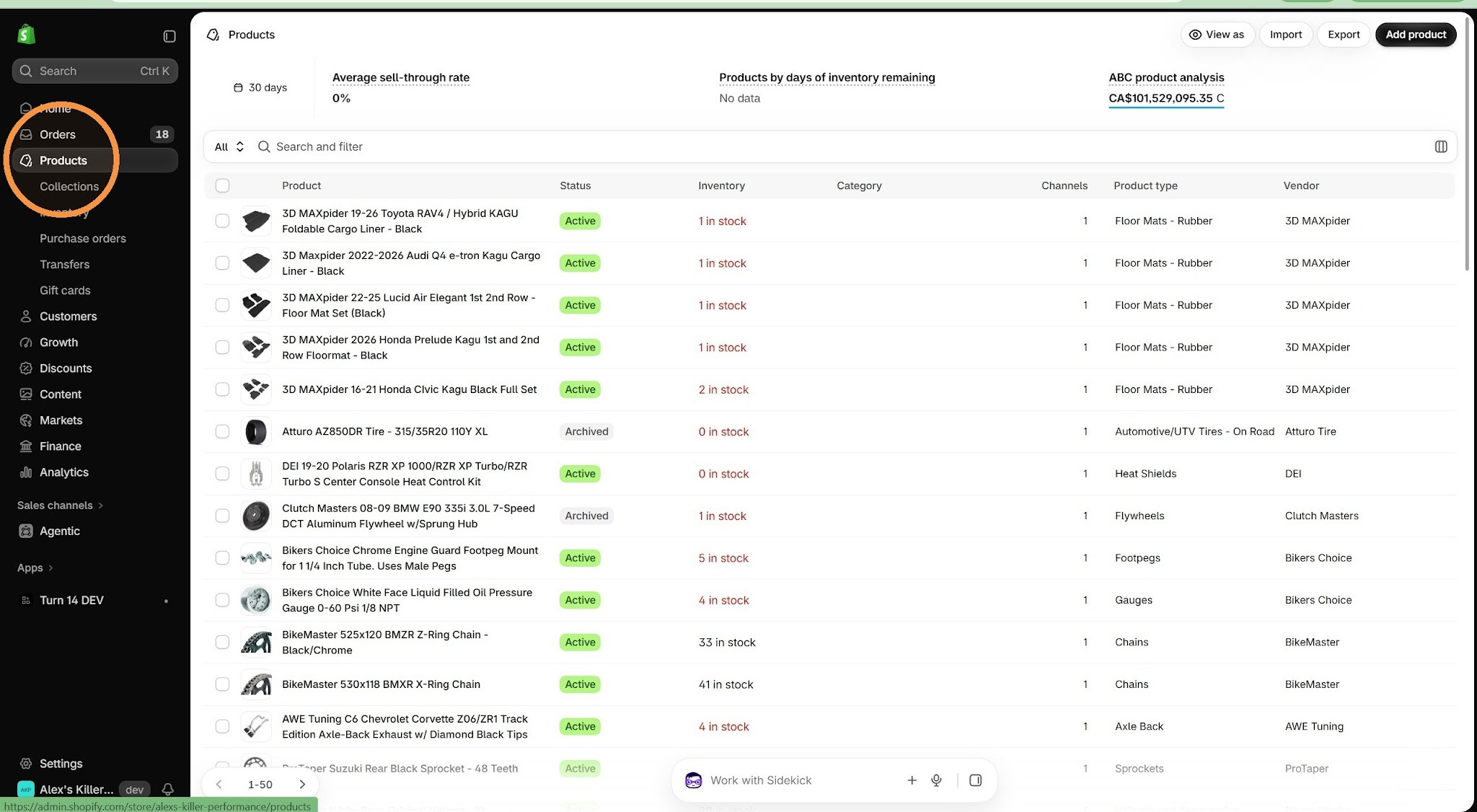
2. Select the desired products to migrate. Shopify will not let you select all the products in the store at once for a wizard like this, but you can go vendor by vendor and select all 50 products per page that way.
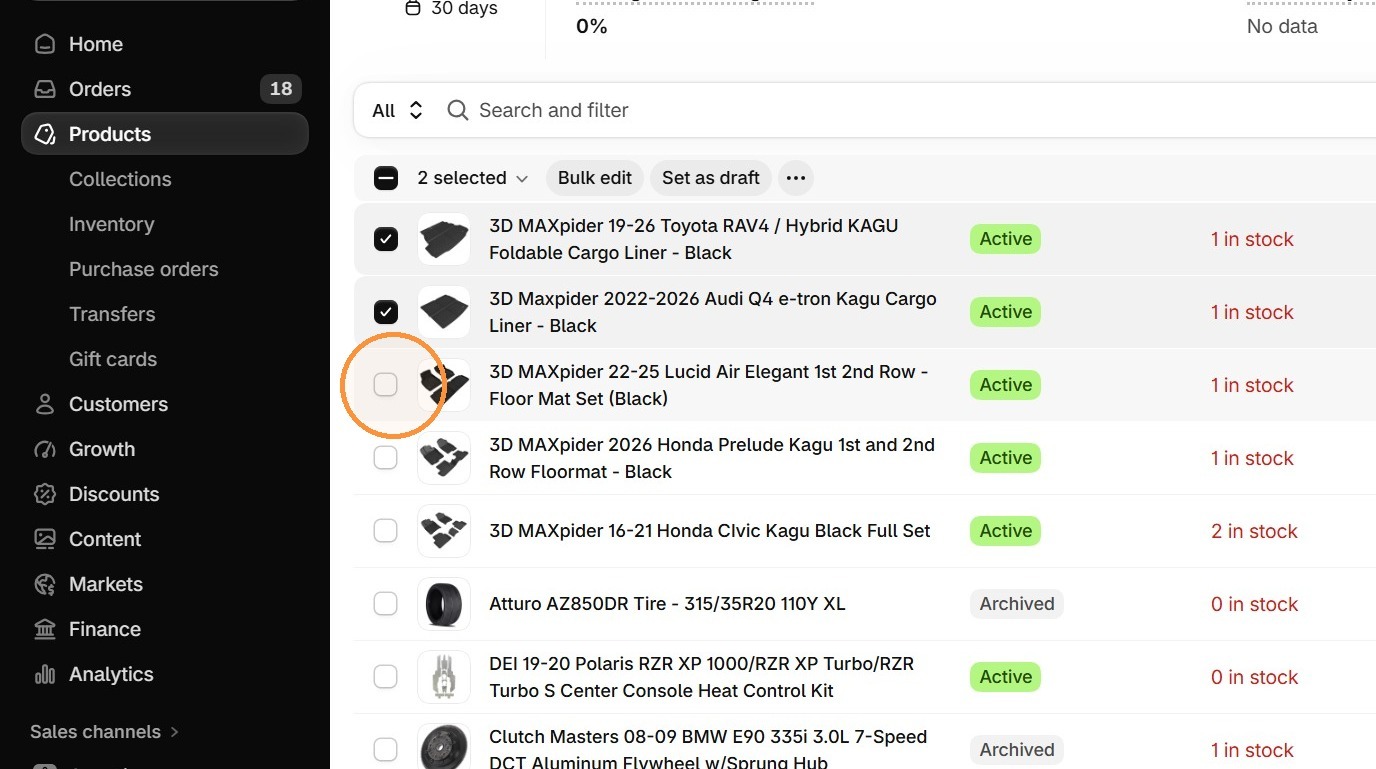
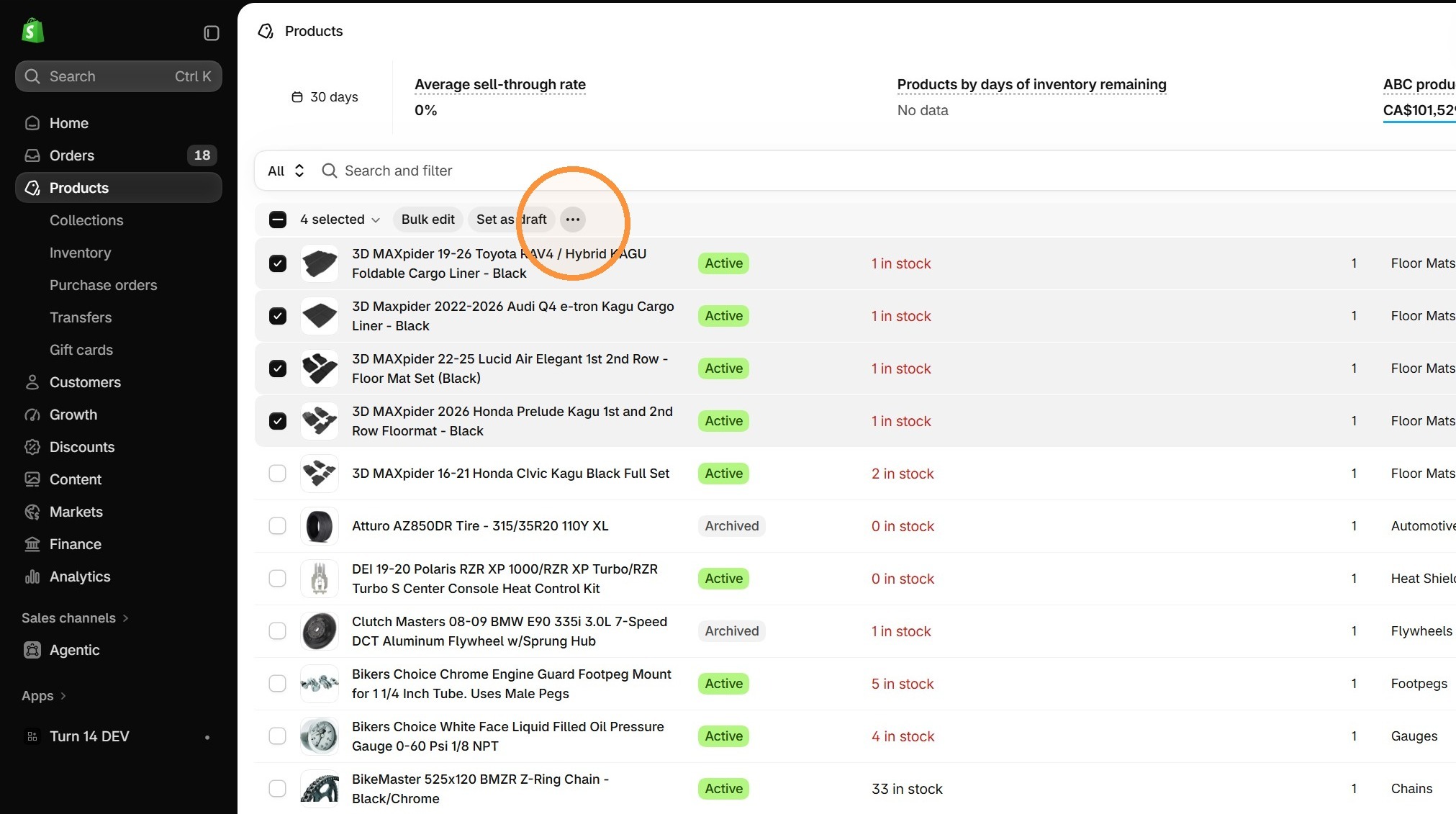
3. Open the Actions menu
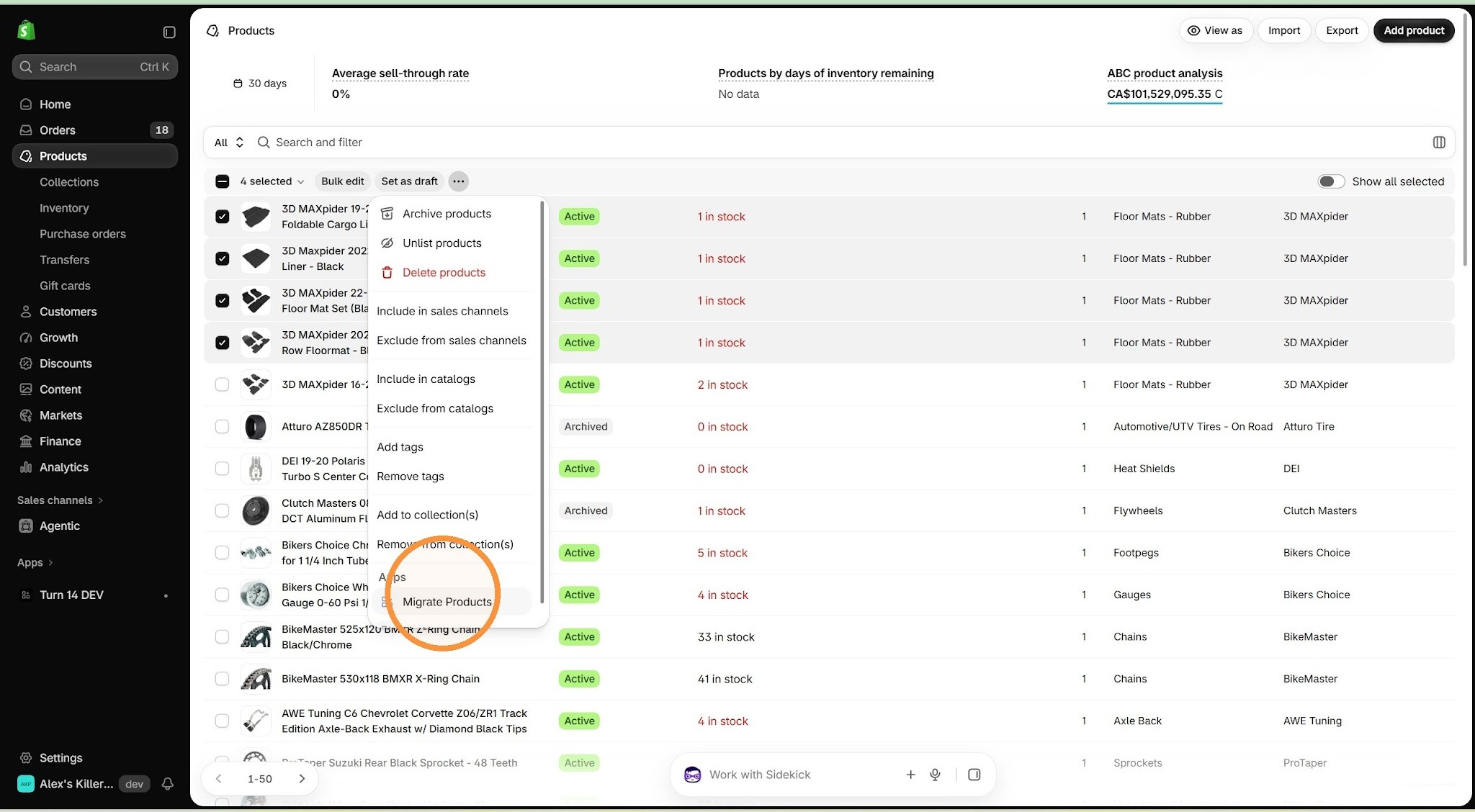
4. Select Migrate Products
5. The migration wizard will open and you can follow the steps
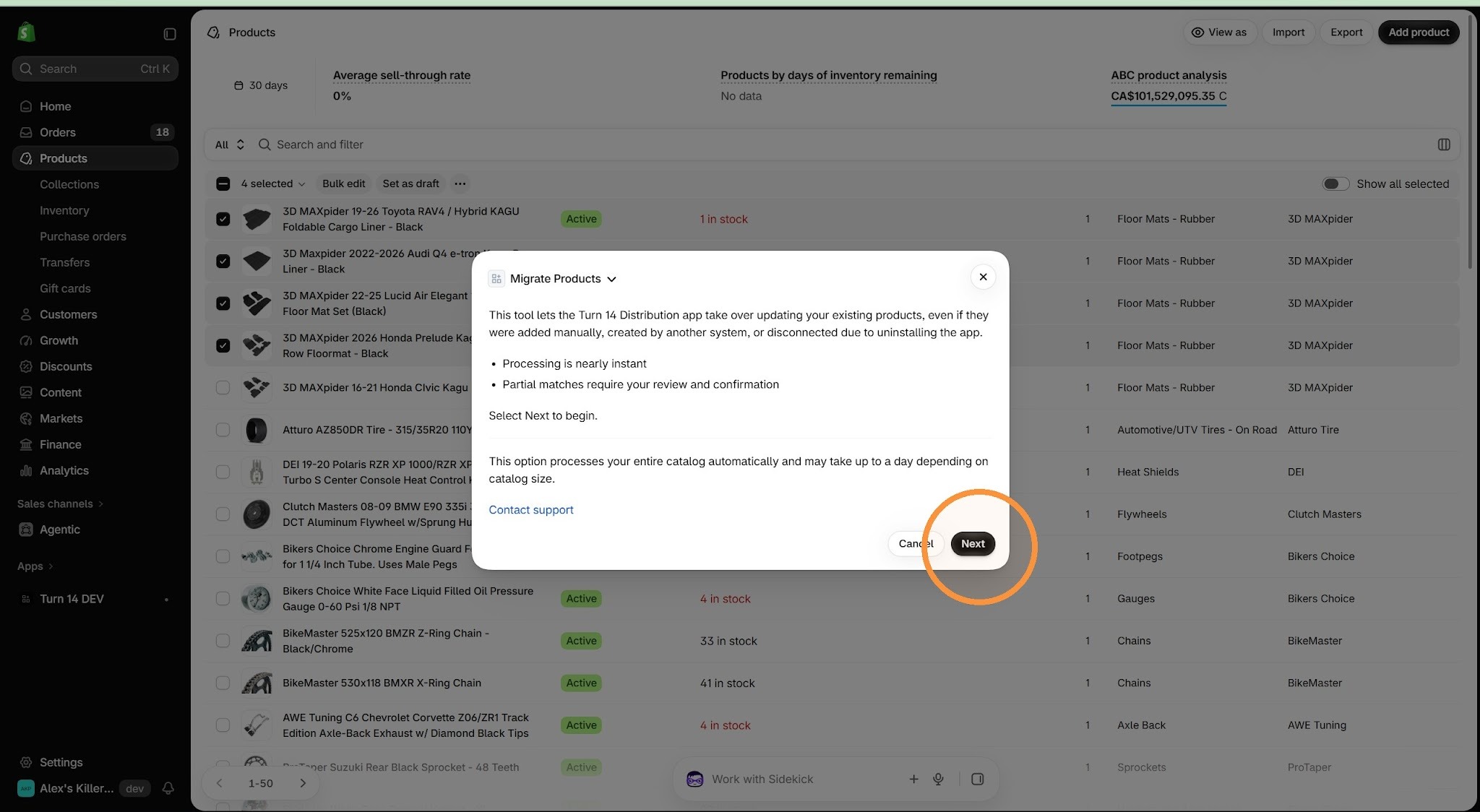
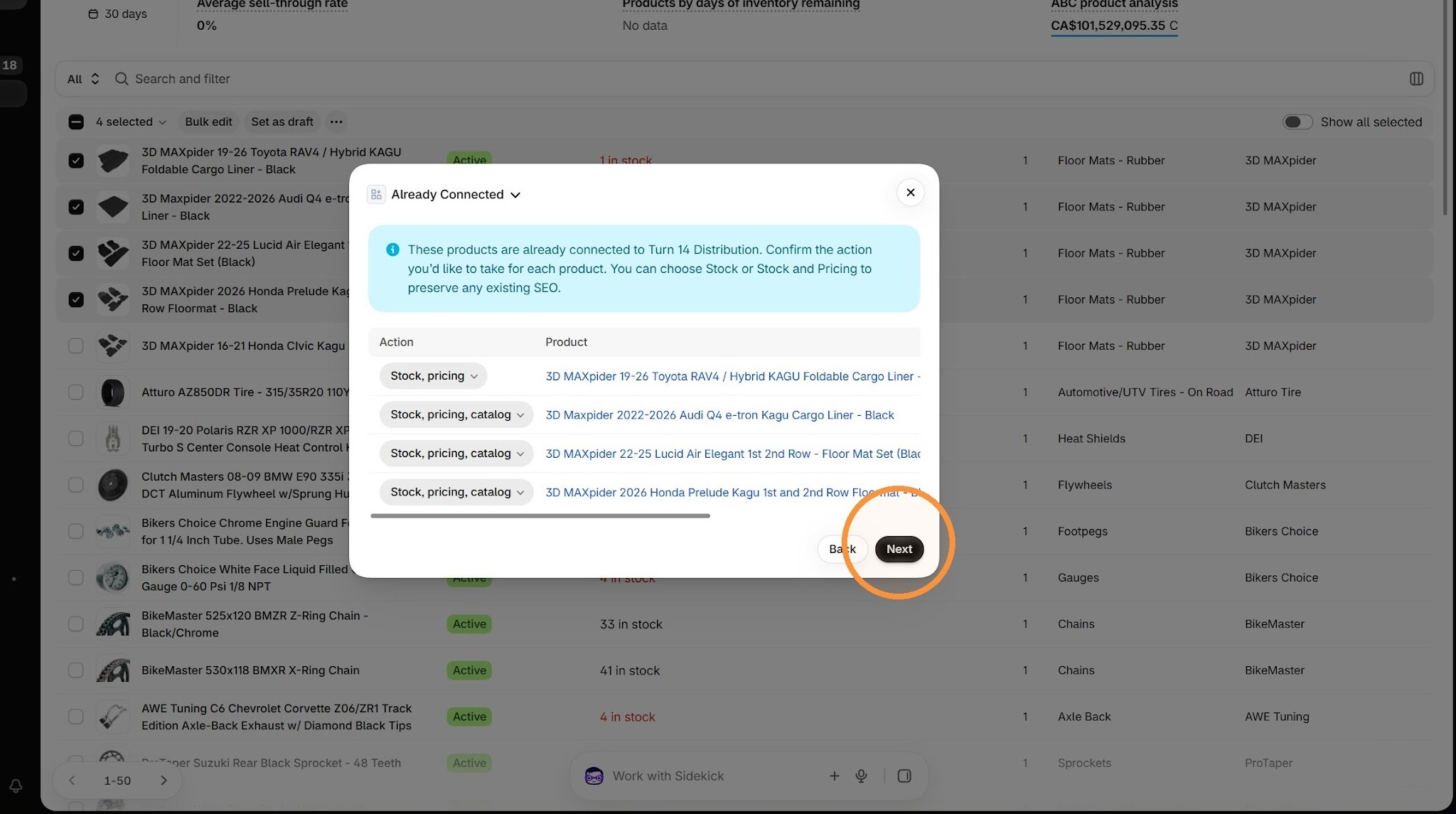
6. Under the action column you can choose what updates you want to apply to the product, like stock, price and catalog data. Catalog data includes titles, images, descriptions and fitment tables. So if you have custom titles or descriptions you may want to opt out of the catalog data sync and just choose stock and price.
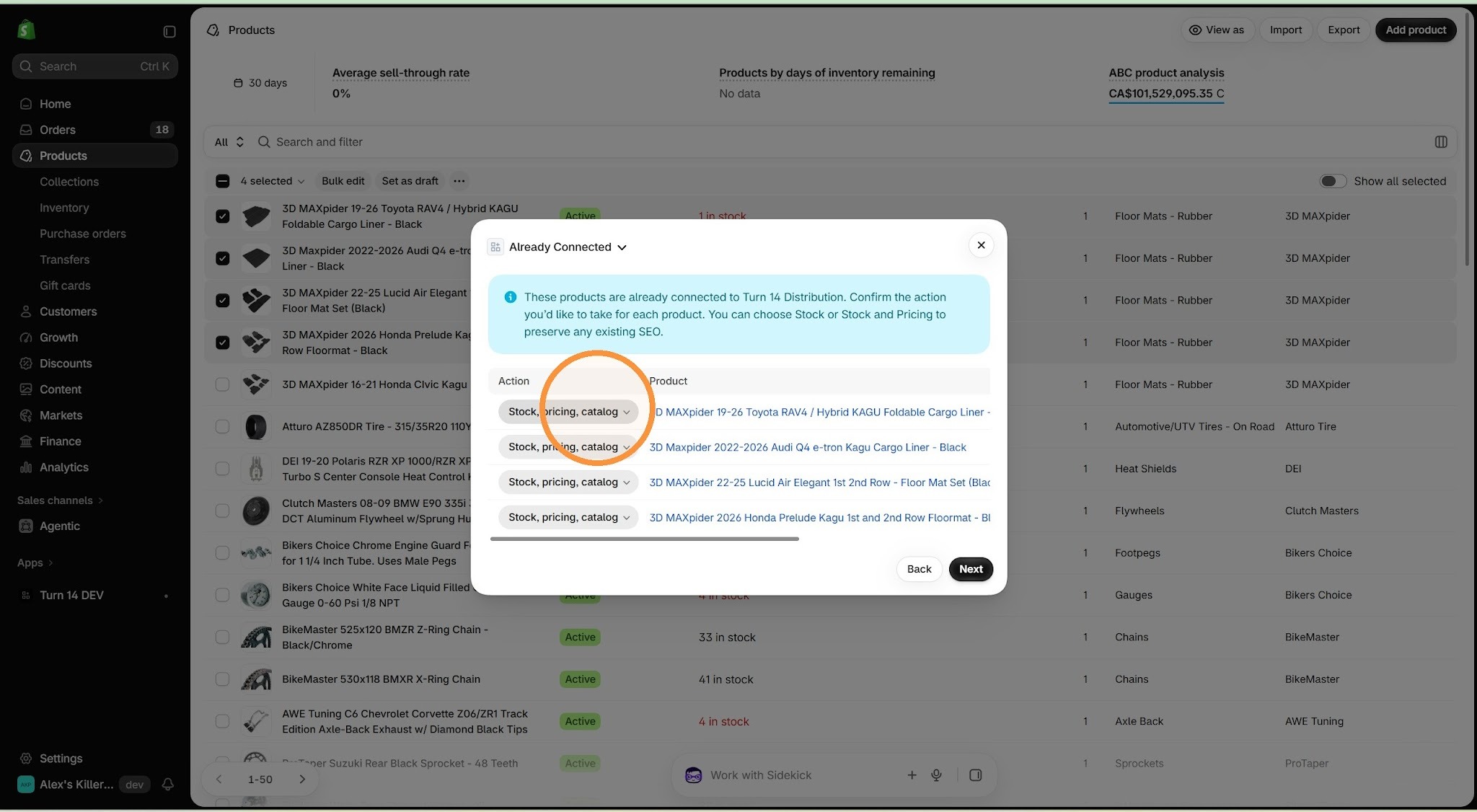
We use three fields for comparison, the Turn 14 part number for example "ADD”F210014100103, the manufacturer part number for example F210014100103, and the barcode or UPC.
Unrecognized products - Some products you selected may not match any Turn 14 part number, MPN or UPC and we will not be able to take them over. Those skus will be left as-is.
Exact Matches -These products are an exact match to a Turn 14 part number, MPN or UPC. Even with an exact match, we may still need to rename the vendor in Shopify in order to align with the Turn 14 brand name which is a core component of taking over and updating products. If you don’t want to proceed with changing the vendor name in Shopify you can close out of the wizard and leave those products as-is.
Partial Matches - These are products where the MPN may match but the UPC is missing, or there’s a UPC that matches, but the MPN doesn’t. These need to be reviewed more closely to make sure the product is indeed a Turn 14 product you want us to take over. This step may also include renaming the vendor.
7. Click "Next"
8. Once you've gone through all the steps and you are ready to proceed click "Migrate"
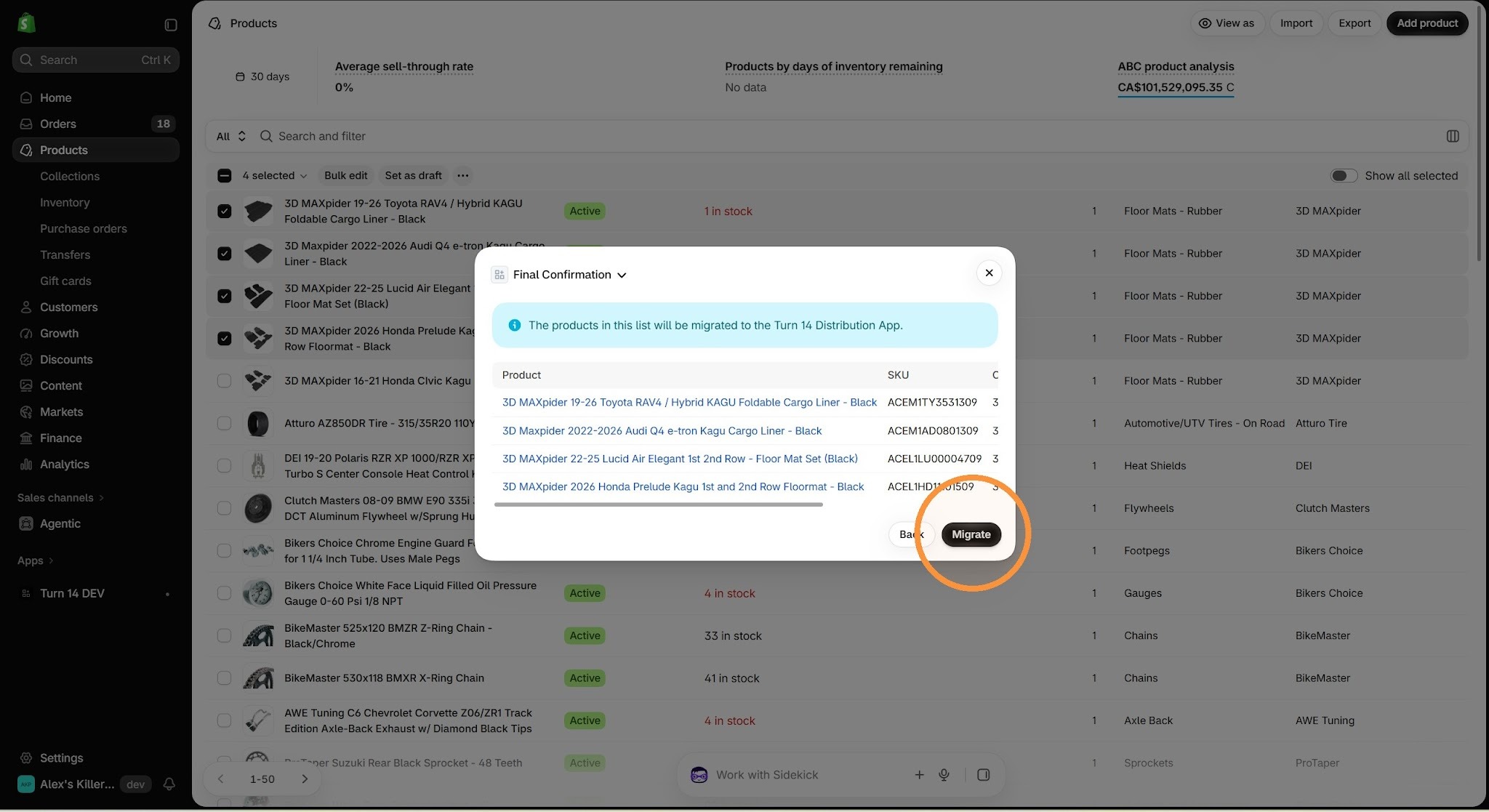
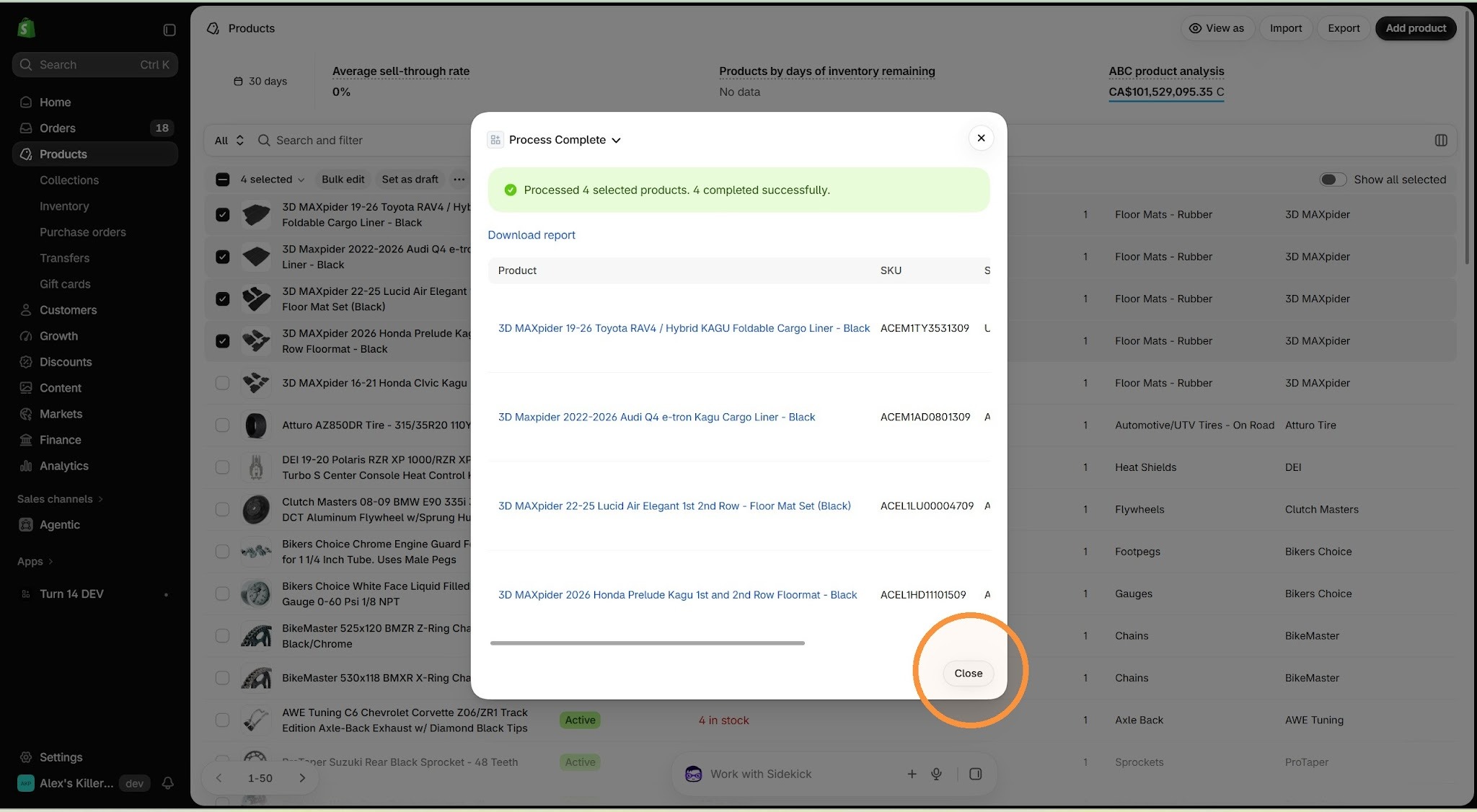
9. The final screen is a confirmation of the products migrated, and there's also a downloadable report at the top with more detailed information.
Was this article helpful?
That’s Great!
Thank you for your feedback
Sorry! We couldn't be helpful
Thank you for your feedback
Feedback sent
We appreciate your effort and will try to fix the article